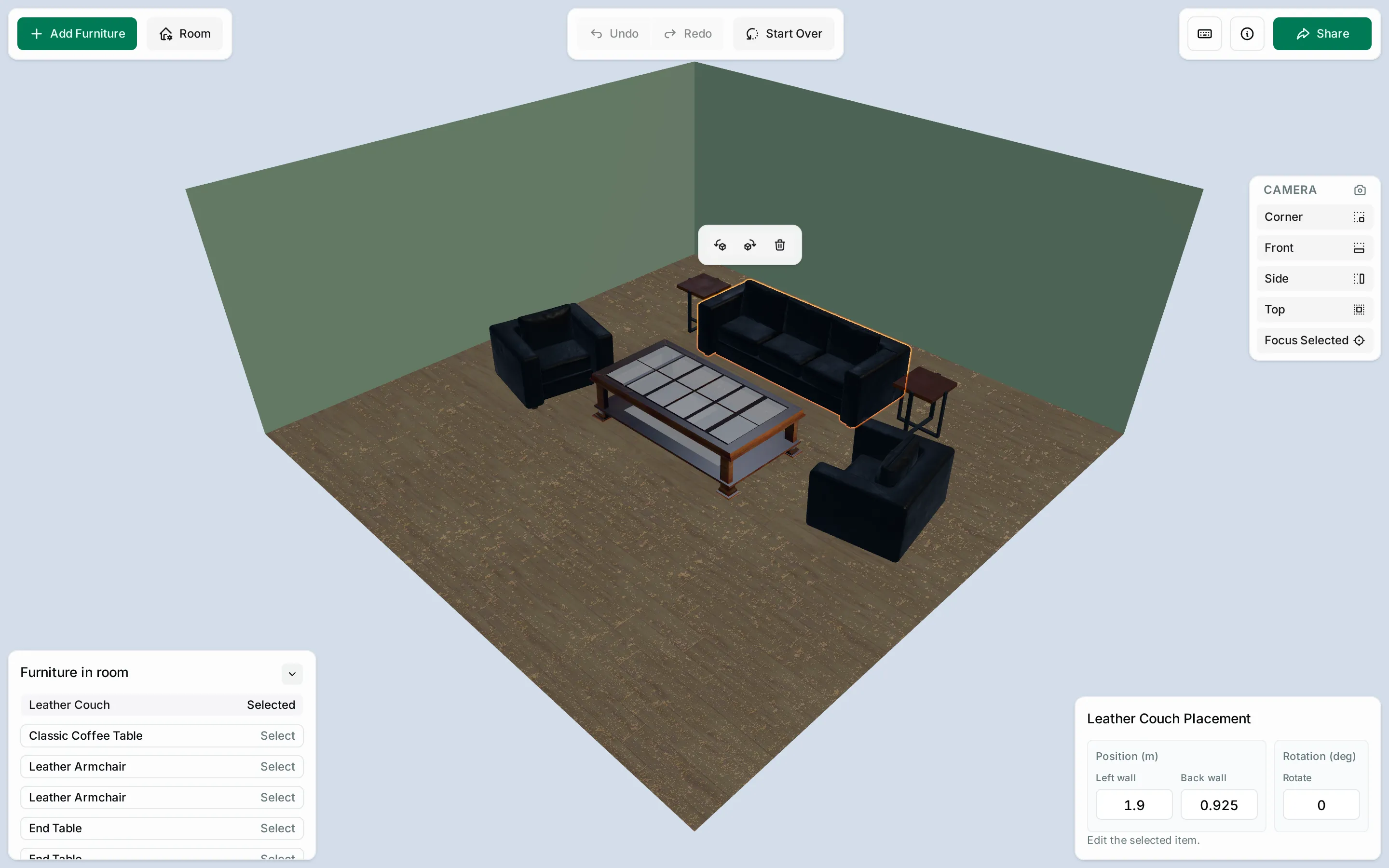
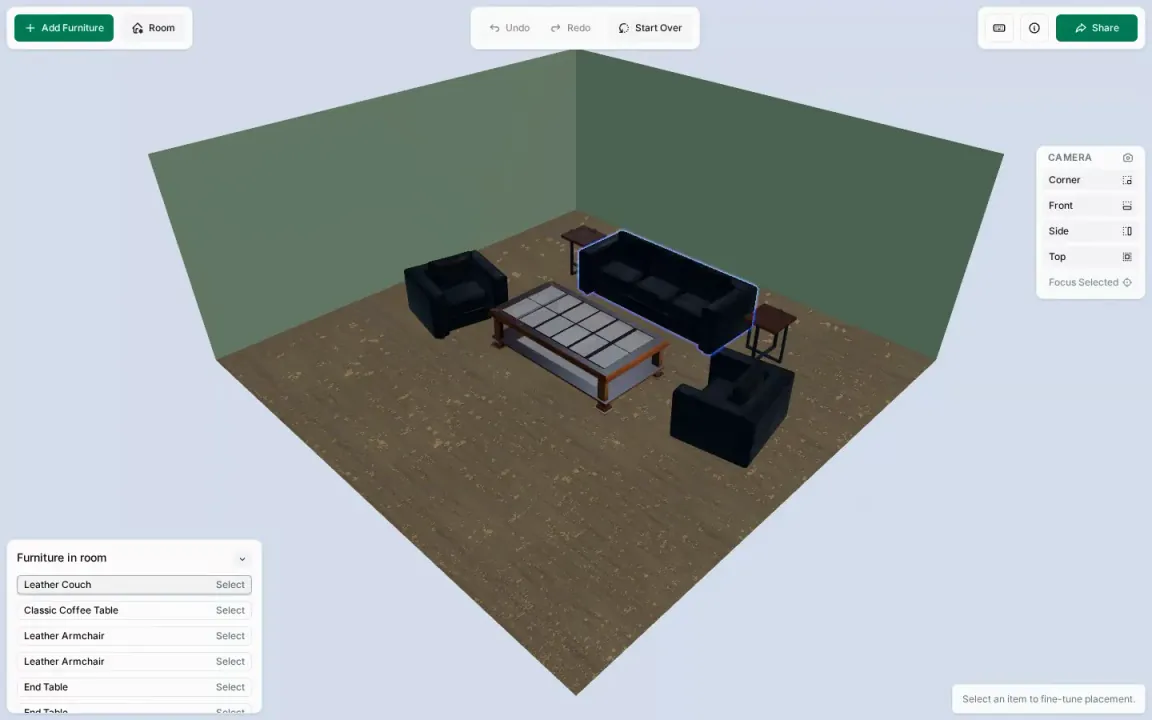
Room Layout is a browser-based 3D planner for exploring catalog furniture in context by selecting different pieces and arranging them in a room. Users can enter their room dimensions, choose finishes and lighting, add furniture from a visual catalog, and arrange it with dragging, keyboard controls, or numeric fields. Layouts are autosaved in the browser for recovery after a reload and can be shared in a URL.
The interface is designed around consumer room planning rather than 3D modeling software. Controls use distances from the room’s walls and clockwise degrees. Furniture can be selected in the 3D scene or conventional UI panels.
Editing the room
Furniture placement
Furniture can be selected directly in the room or from a text list on desktop. Dragging provides direct placement, keyboard controls make incremental changes, and numeric fields set an exact distance from the left and back walls or a clockwise rotation.
Furniture cannot be moved through other items or beyond the room. Collision and edge-snapping calculations account for each item’s rotation, and one continuous drag is recorded as a single undoable change rather than a series of steps.
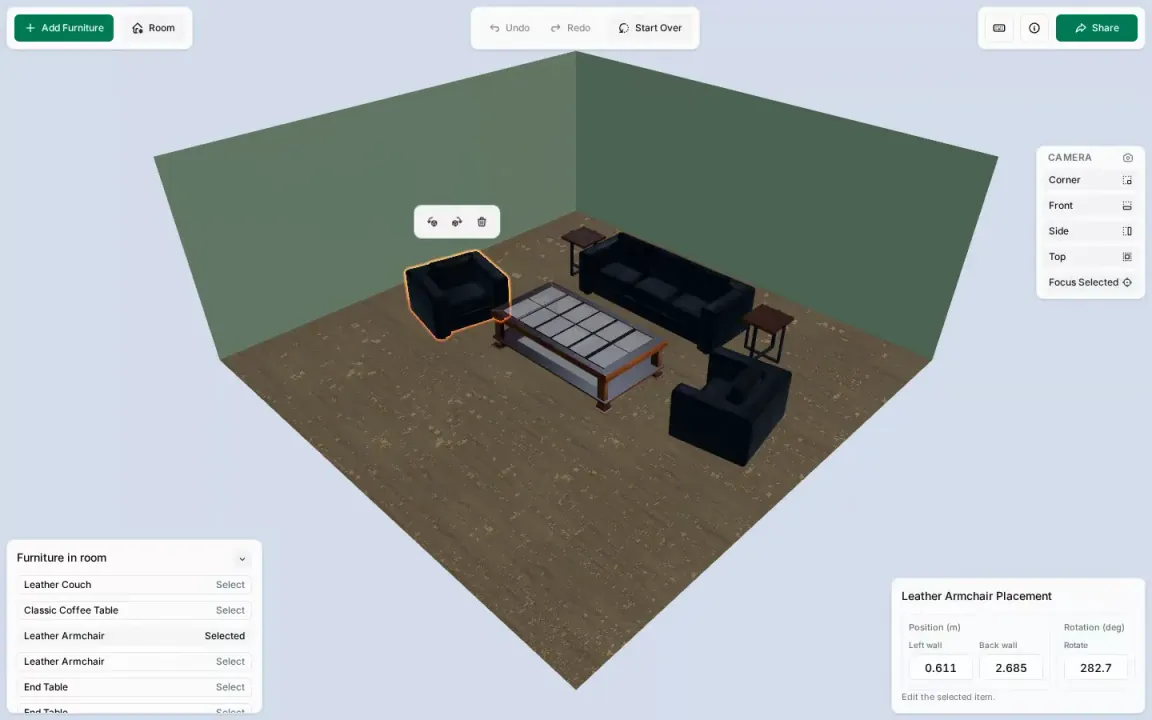
Selected-item controls
On larger screens, the selected-item toolbar floats beside the furniture it controls and follows its position as the furniture or camera moves. It stays in place while someone uses it, so repeated rotation does not move a button out from under the pointer. On a phone, the same toolbar has a fixed position above the details panel instead of covering the smaller room view.
Desktop placement projects the furniture’s outline into screen space and tests several positions around it against both the object and the surrounding UI. Catalog entries can optionally reference a low-poly mesh for toolbar placement. Projecting this simplified geometry keeps the per-frame calculation inexpensive while preserving enough of the furniture’s shape to position the controls clearly. A stability margin keeps the toolbar from switching between nearly equal positions, while a clamped fallback keeps the controls on screen when no candidate fits cleanly.
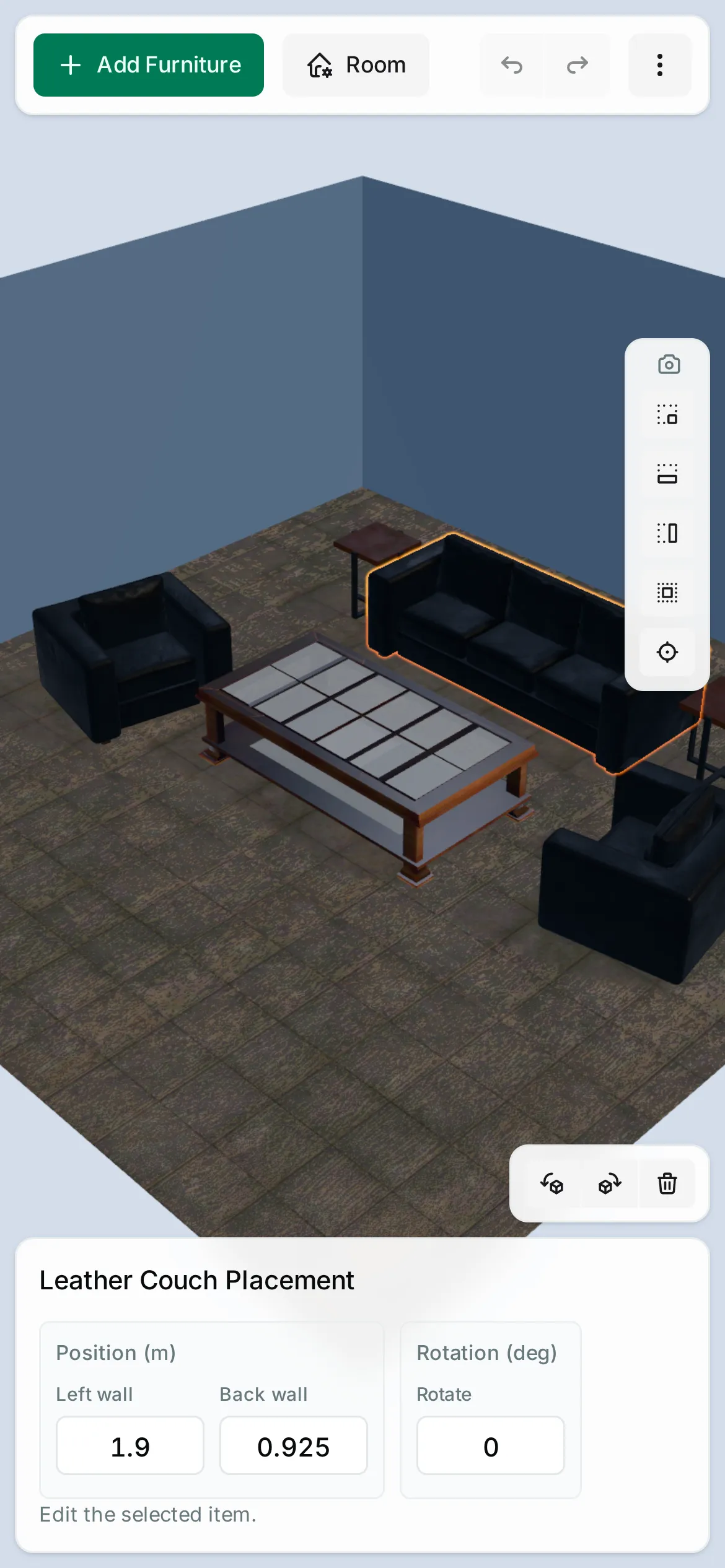
Decision record: one placement model per form factor · Decision record: the placement engine stays
Environment and room size
Room controls set its width, depth, and height, as well as wall colors, flooring materials, and lighting moods. These settings are included in autosave and shared URLs along with the furniture.
Furniture stays within the walls during normal editing, but the room can be resized around an existing arrangement. Shrinking it never silently rewrites the furniture positions. Items stranded outside the new walls receive warning outlines, and the application offers an explicit, undoable fix that pulls only those items inside. Furniture larger than the room remains flagged, while any overlap created by the fix remains visible for the user to resolve rather than causing previously valid furniture to move.
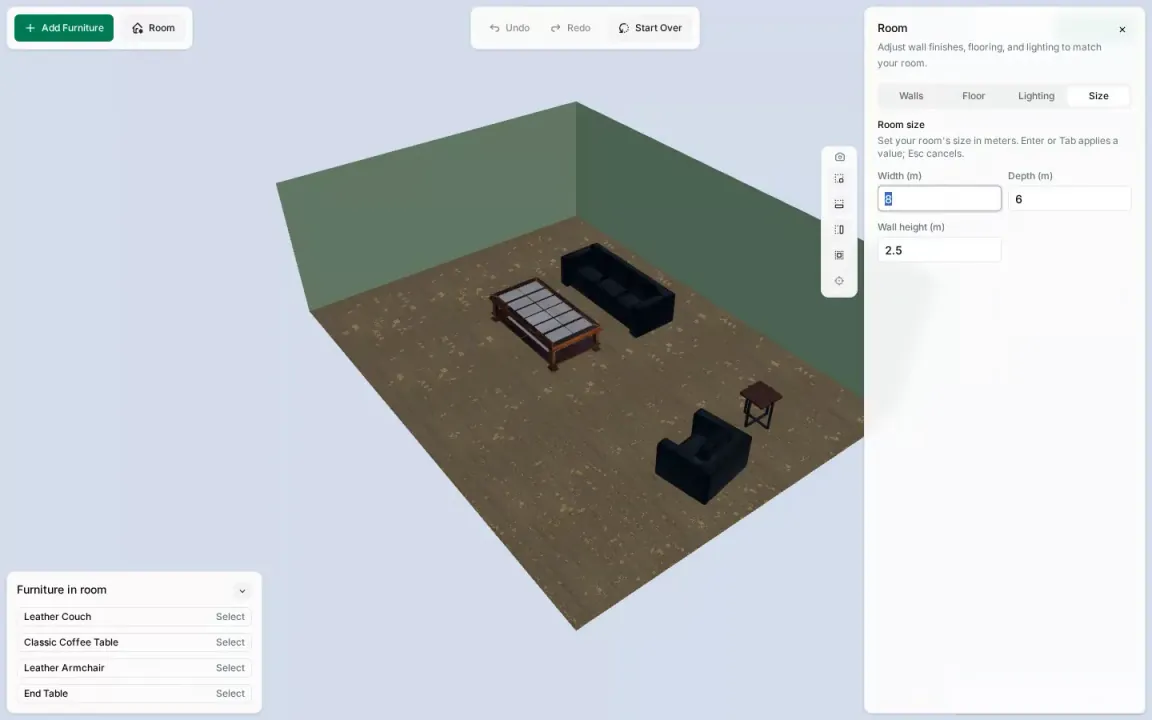
Decision record: shrinking the room never moves furniture
Keyboard, focus, and feedback
Keyboard navigation in the 3D scene
In addition to the surrounding panels, the 3D scene is a focusable region. With nothing selected, the Arrow keys cycle through visible furniture in an order based on its projected position in the current camera view. Enter or Space selects the previewed item. With an item selected, the keyboard can move and rotate it. Additional keys control the camera.
Desktop also provides a stably sorted text list for selecting and managing furniture both on and off screen. Keyboard shortcuts move focus between the scene, list, details panel, and selected-item toolbar.
Focus and accessible feedback
Adding or deleting furniture, closing a surface, undoing a change, and changing responsive layouts can all invalidate an earlier focus target. Instead of passing DOM references between components, each action describes where focus should return. A shared policy resolves that request against the updated application state and hands it to the chosen surface, such as the selected-item toolbar or furniture list. That surface decides which of its elements should receive focus, keeping local decisions within the component that owns them.
Editor operations also produce feedback suited to the input. A blocked keyboard move announces whether the furniture reached a wall or another item, while an item selected from the scene explains how to reach its actions. Repeated movement announcements wait until the keys settle, and newer feedback cancels any stale pending message.
Decision record: focus decisions happen at the moment of change
Architecture and loading
A shared document and command model
The headless core owns the room document, undo history, selection, persistence, and the interfaces to engine capabilities. Pure domain modules own collision, bounds, snapping, and spawn placement. The Three.js scene renders that document and translates pointer input into world-space intent. Furniture state changes only through the core.
Temporary session state such as selection remains separate from the room document. ESLint enforces the layer boundaries, including preventing features from importing one another or reaching into scene internals.
Decision record: core owns the engine ports
Autosave and shareable scenes
The editor automatically mirrors the latest layout to a recovery draft in the browser. The Share control serializes the same scene model into a URL, using the native share sheet when available and falling back to the clipboard.
Values are normalized so an unchanged layout serializes consistently, and default room settings are omitted so existing version-one URLs remain valid as optional fields are added.
A valid shared URL takes precedence when the editor opens. If it cannot be restored, the editor can recover the autosaved draft and report what happened rather than silently replacing local work.
First paint before the 3D engine
The initial branded loading view and its theme styles are part of the static HTML, so the browser can paint them before the application or 3D engine chunks are downloaded. When the application loads, a matching React progress view takes over without changing the loading layout. The application shell and larger 3D engine load independently, and the shell can begin downloading furniture for a restored layout in parallel with the engine.
An empty room becomes interactive without waiting for catalog models. A restored layout waits only for the furniture collections it references, and later catalog additions load their collections on demand.
The shell streams those downloads so it can report byte progress and detect a stalled transfer without imposing a total time limit on a slow connection. Connection failures remain retryable, while missing or invalid model data is marked unavailable. Each explicit retry starts a new loading cycle. If work from the previous cycle finishes late, its result is discarded instead of being written into the restarted editor.
Internationalization foundations
Application strings and accessible names are routed through Lingui, while numbers and units use the browser’s internationalization APIs. English is the only production locale today, but translation catalogs load independently, language and text direction are applied at the document level, and linting guards visible JSX text and accessible names from bypassing the translation system.
A generated en-XA pseudo-locale expands the English strings to catch
untranslated application text and broad overflow problems in browser tests.
Supporting another production locale would still require translations and
manual layout review.
Verification
Idle-rendering protection
The 3D scene renders on demand instead of running a permanent animation loop, avoiding unnecessary processor and battery use while the room is unchanged. A React bug such as an unstable dependency or state-writing effect can still keep the application updating and repeatedly trigger new renders, so a dedicated end-to-end browser test protects against this class of regression. After camera movement and toolbar placement settle, it verifies that the React application and Scene components do not render again and that the toolbar store receives no further writes.
Browser and accessibility checks
Unit and integration tests cover geometry, document operations, focus policy, persistence, loading, and toolbar placement. Playwright exercises the production build through pointer and keyboard input.
A test-only bridge exposes semantic scene state and a projected pointer target for each visible object. Tests use the editor’s DOM controls and keyboard interface when those are the behaviors under review. Tests that specifically cover canvas selection or dragging dispatch real pointer input at those targets and then assert the resulting document state. The production build omits the bridge.
Browser checks run axe across the main editor and transient states such as errors and dialogs. The repository also includes a short manual assistive-technology checklist for focus changes and live announcements, which cannot be verified from DOM state alone.
Decision records
Architecture decisions are recorded in the repo as they’re made (docs/decisions) and rendered here: